
|
An update to PDFOutliner is now available on the Mac App Store. The update improves the AutoTOC feature and you can now mark the fonts used for building the table of contents. You can also save these "font sets" to a text file on disk, to load it for the next run. For example, I use Ulysses to write documentation for my apps, and export a PDF. To add a table of contents, I use PDFOutliner. The video below shows the workflow in PDFOutliner (5 min.)
0 Comments
It's a good idea to run OCR on the scanned PDF BEFORE you start adding a table of contents (TOC) to the PDF. This is because OCR apps usually create a new PDF, and may not know how to preserve the table of contents from the original PDF when writing out the new PDF. Your hard work in creating the TOC would then be wasted. Moreover, PDFs with OCR text allow text to be selected which can be used to build the TOC quickly as described below.
Note that PDFOutliner comes with an automatic TOC feature which parses the fonts used in a PDF - such as larger fonts used for chapter headings - to build a TOC hierarchy. However this "AutoTOC" feature doesn't work on a scanned PDF (which contain no text) or even an OCR PDF (which do not assign different fonts to chapters/body text etc.) In such cases, you have to "walk" through the PDF page by page, and add TOC entries. Here's how:
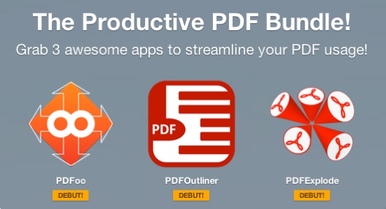 PDFOutliner, PDFoo and PDFExplode are now available for purchase outside the Mac App Store. As a launch special, the three apps are available for 50% discount when purchased together in the "Productivity PDF Bundle" offered by Paddle (US$6.50, offer ends November 27, 2013.)
Also, you can now download fully-functional 7-day trial versions of all three apps on the Downloads page. When you are editing the table of contents (TOC) manually in PDFOutliner, you have the option to either refer to pages using page labels (the numbers in red boxes on each page and below the thumbnails) or using the page numbers printed on each page. The video below shows how to use the "p" prefix for printed page numbers.  PDFOutliner has a new application icon!
PDFOutliner now provides several techniques to edit the Table of Contents (TOC) in your PDF. The Editing Features Overview document (PDF, 0.2MB, 8 pages) goes into the details.
This 2 min video shows how the AutoTOC feature works by interpreting the fonts used in the PDF document. AutoTOC makes it easy to automatically generate a table of contents (TOC) for your PDF, and its easy to experiment. AutoTOC in action on the 140-page PDF manual for Curio 7 available from www.zengobi.com Features powerful new tools to edit and build a table of contents for your PDF. |
Archives
March 2021
Categories
All
|
 RSS Feed