
 Curio 8 provides a virtual whiteboard on which you can position text, lists, mind maps, images, audio & video. The app is great for visual thinking, allowing you to position related ideas together and see gaps in your analysis, or uncover new connections. Curio also allows you to attach rich text notes to any object on the canvas, using the Notes inspector. The notes icon on the toolbar opens a floating window where you can add notes to any object. It's contents changes as your selection changes. Unfortunately, when you copy an object to the clipboard, these notes are NOT copied. Only in a special case, when you've attached notes to items in a list or a mind map, are the notes also copied to the clipboard. If you're a visual thinker, or the idea of laying out your ideas on a virtual canvas appeals to you, try out the following: create new list objects in Curio (shortcut CTRL CMD L), attach notes to list items as seems fit, play around with reorganization of ideas within lists and across lists, and when you're ready, select and copy the lists for pasting into email or your favorite word processing app for further development. Bonus: use the free WordCounter app to see word count of all text copied to the clipboard. If you've been fleshing out your ideas in Curio's floating notes pane, this is a quick way to know your progress in terms of word count. 
Curio 8 allows you to attach notes to any object on the virtual whiteboard. If you attach notes to list items, these notes are also copied to clipboard when you copy the list. You can use this feature to visually map out your writing projects.
0 Comments
 WordCounter is a menu bar app that displays the word count of text on the clipboard. As new text is copied to the clipboard, the app updates the word count. You can temporarily disable or enable the app via a drop-down menu.
WordCounter is available for free on the Downloads page. When you click on a pdfoo:// URL, the PDFoo app responds just like when you click on a http:// URL, the Safari app responds (or rather, your default web browser). But the similarity goes further. In a http URL, there is a "server" on the Internet that Safari connects to based on the URL clicked. In the example below, the server is "onekerato.com". The rest of the URL conveys which page on the server should be displayed by Safari. 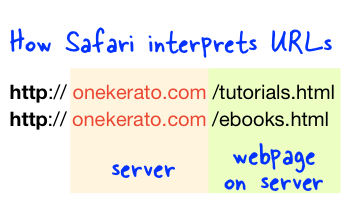 Similarly, a pdfoo URL has a "prefix" which identifies the PDF that PDFoo should connect to, and the rest of the URL identifies which page or location in the PDF should be displayed. In most cases, the rest of the URL is just numbers which corresponds to page numbers & locations on a page. However, when you drag out a TOC entry from the PDF, you will get a readable URL. When you click on a pdfoo:// URL, PDFoo figures out which page or TOC entry to open. Moreover, just like every website is a unique "server", similarly each PDF on your Mac must be assigned a unique "prefix" in PDFoo before you start dragging or copying out URLs. 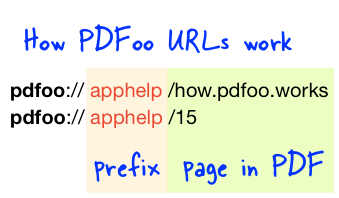  You can now copy-paste rich text with PDFoo URLs directly into Apple Pages documents and Keynote slides. The PDFoo URLs are clickable and open up the PDF in PDFoo to the specified location.
The URL support extends to other 3rd party URLs too. For example, you can copy an Evernote note URL (via the right click menu on a note in Evernote) and embed the URL in Pages or Keynote. You can now take advantage of iCloud collaboration and sync features for your notes, documents and presentations containing PDFoo and Evernote URLs.  PDFOutliner, PDFoo and PDFExplode are now available for purchase outside the Mac App Store. As a launch special, the three apps are available for 50% discount when purchased together in the "Productivity PDF Bundle" offered by Paddle (US$6.50, offer ends November 27, 2013.)
Also, you can now download fully-functional 7-day trial versions of all three apps on the Downloads page. When you need to get ideas out of your head, typing is not your best option. Your brain can generate ideas at ~500wpm (words per minute) while your fingers struggle along at a lowly 60-75wpm. It's akin to asking a toddler to jot down minutes of a meeting. It can be done, but there's a better way. Dictation can easily give you a 60-100% raw bump in speed compared to typing. But it gets even better.
Dictation makes brainstorming a more fluid process. Your brain gets more time to think without having to watch over what you've typed or spotting typos. It takes away the hesitation before jotting down an idea. It makes it easier to rephrase for clarity. And it's fun. Of course, all that's true only when dictation accuracy is great. On your Mac, your best bet is Dragon Dictate. What to do with your hands then? Let them play assist. Scroll, pan & position the cursor where the next idea should go. Fire out keyboard shortcuts in your favorite app. Or, when you're ready for a touch of magic, set up a few voice commands to trigger the powerful features in your app. For example, when dictating in Mindjet, Dragon Dictate can be configured to recognize spoken commands such as "Fit Map to Window", "Balance This Map" and "Focus on This Topic" which may be easier to remember than obscure keyboard shortcuts. With OS X Mavericks, powerful dictation technology is now available on every Mac. Get started with dictation for free, and if it works out for you, step up to Dragon Dictate for higher speed & accuracy with its ability to understand your specialized vocabulary, and learn from its mistakes in speech recognition. See also:
 PDFCombo is an app to combine multiple PDF files. Unlike other apps, PDFCombo preserves the Table of Contents (TOC) in the combined PDF. It can also add a new top-level TOC entry for each contributing PDF. This can be useful to keep a complex TOC neat & tidy, or to add a TOC item to demarcate contributing PDFs.
For example, if you've created PDFs using the File > Print... dialog in Mac OS X or you've got several scanned PDFs, you can combine them into one PDF with PDFCombo with automatic TOC entries to mark the first page of each contributing PDF. PDFCombo is a free app available on the Mac App Store. For editing the TOC in any PDF, consider PDFOutliner. See also notes to PDFCombo 1.0.2 (published 04/21/2014) and PDFCombo 1.0.3 (published 05/15/2014.) [2017 Update]: PDFSpeech is a new powerful app that can combine multiple PDF files into a PDF Pack. See this short walkthrough on how to print an entire book from safaribooksonline.com to PDFSpeech to create a PDF with a table of contents. PDFSpeech also includes the ability to insert clipboard contents as PDF into the Pack, and multiple pages selected & copied from Preview. The primary use of PDFSpeech is to help you read more by tapping into text-to-speech technology, and it enables easy control over pronunciations so you can listen to the generated speech for extended periods without any glaring mistakes. |
Archives
March 2021
Categories
All
|
 RSS Feed